
: :
: : : : :
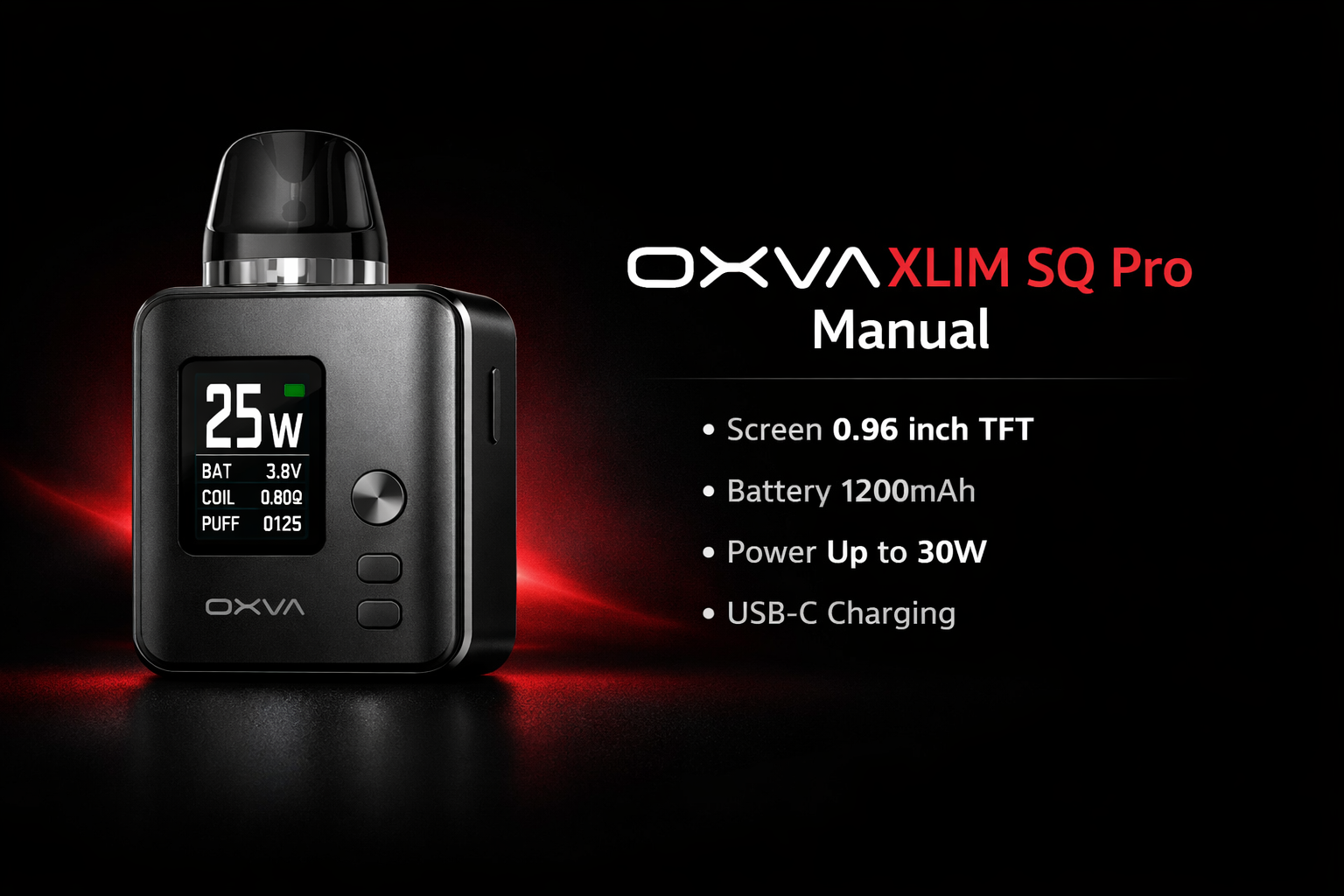
OXVA XLIM SQ Pro manual and user guide
: : : : :
: : : : : : Looking for the XLIM SQ Pro instructions? This page gives you the main controls, setup steps, screen prompts and quick answers in one place, so you can find what you need faster without reading the whole leaflet front to back.
: : : : :
: : : : :
: : : : : : It covers how to turn the device on and off, how to vape using auto-draw or the fire button, how to move through the menu, how to adjust the output, how to lock it, how to fill a new pod properly, and what the main prompts mean.
: : : : :
: : : : : : Shop Similar Device
: : : : : : Open XLIM Pod Guide
: : : : :
: : : : : : If you only need the essentials, start with the controls, filling steps and prompt meanings below.
: : : : :
: : : : : : Manuals Hub
: : : : : : Pod Compatibility
: : : : : : Troubleshooting
: : : : : : Output Help
: : : : : : 
: : : : : : : Main controls
: : : : : : :
-
: : : : : : : :
- 5 clicks on or off
- 3 clicks output
- 4 clicks lock
- Auto-draw or button vape
: : : : : : : :
: : : : : : : :
: : : : : : : :
: : : : : : :
: : : : : Setup made simpler
: : : : : Screen controls explained
: : : : : Prompts explained
: : : : : Key specs at a glance
: :
Quick fix: verify SQ-specific settings and pod checks first
SQ Pro setups differ from other XLIM SKUs. If the unit misbehaves, confirm the right model sequence first and only move to pod replacement when clearly needed.
- Confirm the correct SQ Pro manual sequence is being followed
- Check the lock state and battery level
- Reseat the pod, clean contact points, and retest
- Use the troubleshooting route if issues persist
: :
Quick answer: the main XLIM SQ Pro controls
: : : :
: : : : : These are the controls most people want first.
: : : :
: : : : :
Turn on or off
: : : : :
Press the fire button five times in 2 seconds to turn the device on or off.
: : : : :
Vape
: : : : :
You can press the fire button or simply inhale to vape using auto-draw.
: : : : :
Adjust output
: : : : :
Press the fire button three times in 2 seconds to adjust your preferred voltage.
: : : : :
Lock or unlock
: : : : :
Press the fire button four times in 2 seconds to lock or unlock the fire button.
: : : : Quick answer: 5 clicks powers it, 3 clicks adjusts output, 4 clicks locks it, and you can vape by draw or button.
: :
: :
OXVA XLIM SQ Pro specifications
: : : :
: : : : : These are the main details listed in the manual.
: : : :
: : : : : Size
: : : : : 77 × 54 × 20.4mm
: : : : :
Compact square-shaped pod device with a screen on the front.
: : : : : Pod Capacity
: : : : : 2ml
: : : : :
The manual lists a 2ml pod capacity.
: : : : : Screen
: : : : : 0.96 inch TFT
: : : : :
Colour TFT screen showing device status and prompts.
: : : : : Output Voltage
: : : : : 3.2-4.2V
: : : : :
The manual lists this voltage range.
: : : : : Battery
: : : : : Built-in 1200mAh
: : : : :
The manual lists a built-in 1200mAh battery.
: : : : : Charging
: : : : : Type-C 5V/2A
: : : : :
USB-C charging through the Type-C port.
: : : : : Activation
: : : : : Auto-draw or fire button
: : : : :
You can inhale to vape or press the fire button.
: : : : : Menu Control
: : : : : 1.5 second long press
: : : : :
Used to confirm the selected option in the interface.
: :
: :
What is on the XLIM SQ Pro device
: : : :
: : : : : These are the main parts shown in the manual.
: : : :
: : : : :
Fire Button
: : : : :
Used for power, vaping, output adjustment and lock control.
: : : : :
Type-C Port
: : : : :
Used for charging the built-in battery.
: : : : :
Device Body
: : : : :
Main square body housing the battery, screen and controls.
: : : : :
Cartridge / Pod
: : : : :
The refillable pod section at the top of the device.
: : : : :
Airflow Adjust Valve
: : : : :
The manual shows an airflow adjustment control on the side.
: : : : :
Screen
: : : : :
The TFT screen shows output and system messages.
: : : : :
Pod Connection Area
: : : : :
The fit here matters for normal day-to-day use.
: : : : :
Charging Area
: : : : :
The base port is used for Type-C charging.
: :
: :
How to move through the XLIM SQ Pro menu
: : : :
: : : : : The manual gives a simple menu method that is easy to miss if you only look at the button clicks.
: : : :
: : : : :
Open options
: : : : :
Press the button twice within 1.5 seconds to enter the secondary interface.
: : : : :
Move between options
: : : : :
Press the button once to select different options.
: : : : :
Confirm a choice
: : : : :
Long-press the button for 1.5 seconds to confirm the selected option.
: : : : If the menu feels confusing, the easiest way to remember it is: 2 presses to enter, 1 press to move, long press to confirm.
: :
: :
How to fill and prime the XLIM SQ Pro properly
: : : :
: : : : : A rushed first fill is one of the easiest ways to spoil a new pod.
: : : :
: : : : :
Best filling routine
: : : : :
-
: : : : : :
- Fill the e-liquid into a new cartridge carefully
- Wait at least 5 to 8 minutes before vaping
- Close the silicone plug as soon as possible after filling
- Only then start vaping
- Take it gently on the first few puffs
: : : : : :
: : : : : :
: : : : : :
: : : : : :
: : : : :
: : : : :
Why this helps
: : : : :
-
: : : : : :
- Not waiting long enough can lead to a burnt first experience
- Leaving the pod open too long can increase leaking risk
- People often blame the device when the real issue is poor priming
- A little patience usually gives a much better first experience
: : : : : :
: : : : : :
: : : : : :
: : : : :
: : : : The most useful filling tip is simple: after filling a new pod, wait at least 5 to 8 minutes before using it.
: :
: :
XLIM SQ Pro prompt messages
: : : :
: : : : : These are the main prompts listed in the manual.
: : : :
: : : : :
Locked
: : : : :
The fire button is locked. Press 4 times to unlock it.
: : : : :
Time Out
: : : : :
Vaping over 8 seconds triggers a timeout and the device stops working.
: : : : :
High Temp
: : : : :
The device is too hot and stops working until it cools down.
: : : : :
Low Battery
: : : : :
The manual lists low battery when the voltage drops under 3.2V and the device stops working.
: : : : :
Short Circuit
: : : : :
The manual lists a short circuit prompt and heating wire short warning.
: : : : :
No Pod
: : : : :
Check the connection between the pod and the device if this message appears.
: : : : If the XLIM SQ Pro keeps showing prompts, check the pod fit, battery level and device temperature before carrying on.
: :
: :
Important safety points
: : : :
: : : : : These are the simple habits worth keeping in mind from the manual.
: : : :
: : : : :
Good habits
: : : : :
-
: : : : : :
- Use the correct Type-C charging setup
- Keep the device away from inflammable and explosive materials
- Check the pod is fitted properly before using it
- Use the device in normal working condition
: : : : : :
: : : : : :
: : : : : :
: : : : :
: : : : :
Do not ignore
: : : : :
-
: : : : : :
- Do not leave the device unattended while charging
- Do not ignore repeated prompt messages
- Do not carry on as normal if the pod fit feels wrong
- Do not rush a freshly filled pod
: : : : : :
: : : : : :
: : : : : :
: : : : :
: :
: :
OXVA XLIM SQ Pro manual FAQ
: : : : :
Quick answers to the most common XLIM SQ Pro setup, controls and usage questions.
: : : : : :
How do I turn the OXVA XLIM SQ Pro on and off?
: : : : : :
Press the fire button five times in 2 seconds to turn the device on or off.
: : : : : :
Can I vape by inhale on the XLIM SQ Pro?
: : : : : :
Yes. The manual says you can press the fire button or simply inhale to vape.
: : : : : :
How do I adjust the output on the XLIM SQ Pro?
: : : : : :
Press the fire button three times in 2 seconds to adjust your preferred voltage.
: : : : : :
How do I lock or unlock the XLIM SQ Pro?
: : : : : :
Press the fire button four times in 2 seconds to lock or unlock the fire button.
: : : : : :
How do I open the menu on the XLIM SQ Pro?
: : : : : :
Press the button twice within 1.5 seconds to enter the secondary interface.
: : : : : :
How do I move through menu options on the XLIM SQ Pro?
: : : : : :
Press the button once to select a different option, then long-press for 1.5 seconds to confirm it.
: : : : : :
How long should I wait after filling a new XLIM SQ Pro pod?
: : : : : :
Wait at least 5 to 8 minutes before vaping on a newly filled pod.
: : : : : :
What pod capacity does the XLIM SQ Pro manual list?
: : : : : :
The manual lists a 2ml pod capacity.
: : : : : :
What size screen does the XLIM SQ Pro have?
: : : : : :
The manual lists a 0.96 inch TFT screen.
: : : : : :
What is the battery size of the OXVA XLIM SQ Pro?
: : : : : :
The manual lists a built-in 1200mAh battery.
: : : : : :
What charging type does the XLIM SQ Pro use?
: : : : : :
The manual lists Type-C 5V/2A charging.
: : : : : :
What output voltage does the XLIM SQ Pro use?
: : : : : :
The manual lists an output voltage range of 3.2 to 4.2V.
: : : : : :
What does Locked mean on the XLIM SQ Pro?
: : : : : :
It means the fire button is locked. Press it four times to unlock it.
: : : : : :
What does Time Out mean on the XLIM SQ Pro?
: : : : : :
It means the puff lasted over 8 seconds and the device stopped working for safety reasons.
: : : : : :
What does High Temp mean on the XLIM SQ Pro?
: : : : : :
It means the device temperature is too high and it will stop working until it cools down.
: : : : : :
What does Low Battery mean on the XLIM SQ Pro?
: : : : : :
The manual lists low battery when the voltage drops under 3.2V and the device stops working.
: : : : : :
What does Short Circuit mean on the XLIM SQ Pro?
: : : : : :
It means the device has detected a short circuit or heating wire issue and has stopped working.
: : : : : :
What does No Pod mean on the XLIM SQ Pro?
: : : : : :
It means you should check the connection between the pod and the device.
: : : : : :
Does the XLIM SQ Pro have airflow adjustment?
: : : : : :
Yes. The manual shows an airflow adjust valve on the side of the device.
: : : : : :
What should I do if the XLIM SQ Pro pod is fitting badly?
: : : : : :
Check that the pod is seated properly and do not force it. If it still feels wrong, inspect the pod and connection before carrying on.
: : : : : :
Should I leave the XLIM SQ Pro charging unattended?
: : : : : :
No. The manual says not to leave the device unattended while charging.
: : : : : :
Do I still need the full PDF manual?
: : : : : :
For everyday questions like setup, output adjustment, filling and prompt messages, the steps above usually give you the fastest answer.
: : : : :
Once the basics are sorted, choose the guide that matches your next question
: : : : :
: : : : : : Most people next need help with pod choice, troubleshooting or output advice, so those guides are the best follow-up once the main controls are clear.
: : : : :
: : : : : : Open XLIM Pod Guide
: : : : : : Open Troubleshooting
: : : : : : Open Manuals Hub
: : : : : The answers above are based on the XLIM SQ Pro manual and rewritten to make the device easier to use day to day.
: :