
How to Lock OXVA VPrime
If you want to stop your OXVA VPrime firing accidentally in your pocket, bag or hand, learning how to lock it properly is one of the most useful everyday settings to understand.
Locking the device helps protect the pod, prevents unwanted button presses, and makes the VPrime safer and more practical to carry around. It also helps newer users avoid confusion when the device suddenly seems not to fire because a setting has been activated by mistake.
Quick answer: Use the VPrime button controls to activate the lock function, then confirm the device no longer fires before putting it away. If it seems unresponsive afterwards, check whether you have locked the device rather than assuming it has gone wrong.
Main benefit Stops accidental firing in pockets or bags Common mistake Thinking the device is broken when it is locked Best habit Lock it before carrying it around 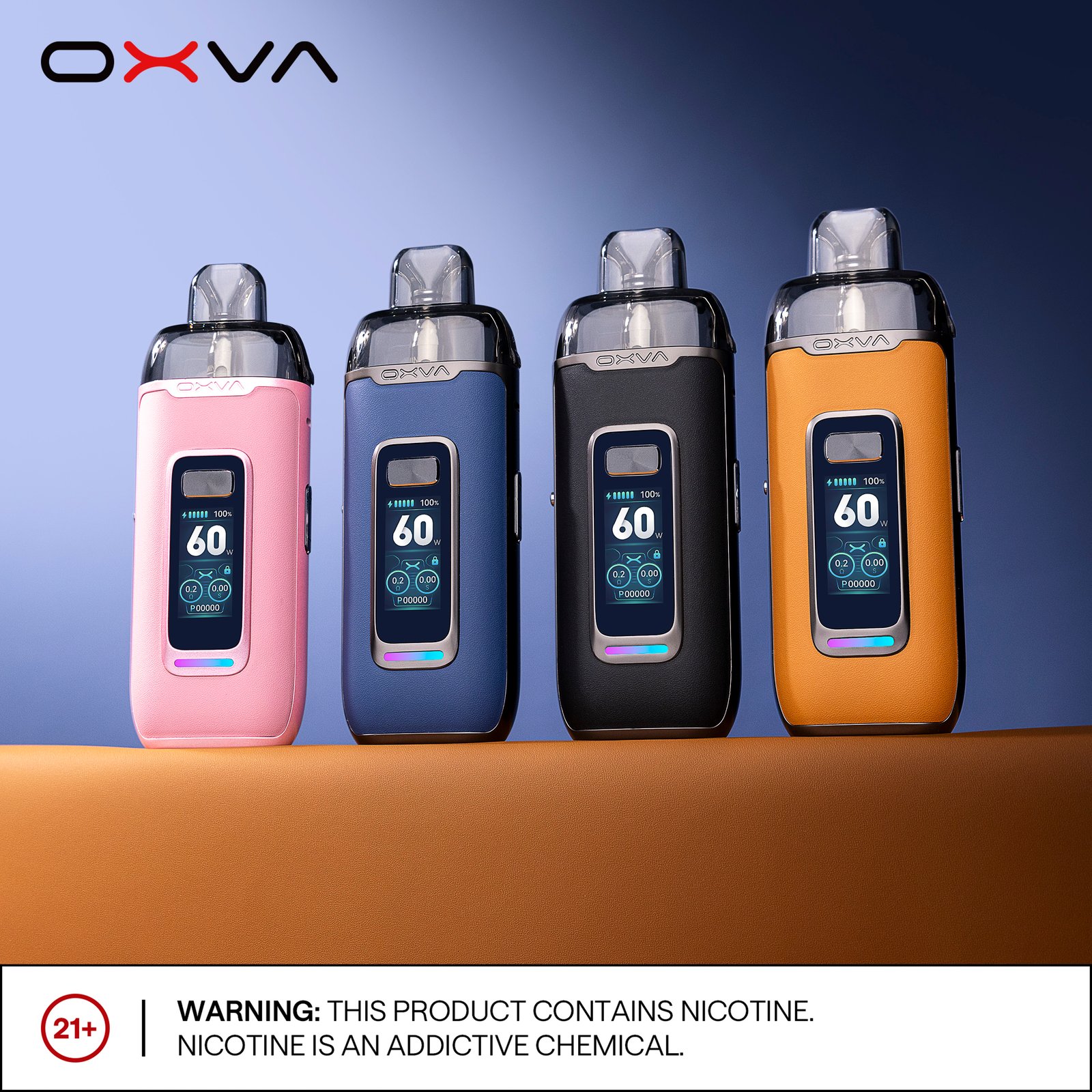
Jump to: Why lock it How to lock How to unlock Common mistakes When to use it FAQ
Why You Should Lock the OXVA VPrime
The VPrime is a more capable OXVA device than many compact starter pod kits, so accidental button presses matter more. If the device fires in a pocket or bag, it can waste e-liquid, shorten pod life, overheat the coil and leave you wondering later why the pod suddenly tastes bad.
Locking the device helps with three main things:
- Preventing accidental firing while carrying it
- Reducing unnecessary wear on the pod and coil
- Keeping the device easier to manage day to day
It is one of those small settings that makes a big difference in real-world use.
How to Lock the OXVA VPrime
The exact button sequence can vary by firmware or version, but the basic process is the same: use the device controls to activate the lock setting, then confirm the VPrime no longer fires before carrying it.
Step 1: Wake the Device
Make sure the screen is on and the device is responsive before trying to lock it. If the display is asleep, wake it first.
Step 2: Use the Button Control Shortcut
Use the VPrime’s main button controls or menu shortcut to activate the lock function. If your version shows a lock icon or message, that is your confirmation point.
Step 3: Check the Screen or Response
Look for a lock symbol, status message or a clear change in firing behaviour that shows the setting has been applied.
Step 4: Test Before Pocketing It
Press the fire button carefully and confirm the device does not fire. That quick test can save you a burnt pod later.
Tip: Always test the lock function before putting the VPrime in a pocket or bag. A quick check is better than discovering later that the device fired by mistake.
How to Unlock the OXVA VPrime Again
Unlocking normally uses the same control pattern as locking, or a very similar one. If the VPrime stops firing after you have been exploring settings, the simplest explanation is often that the device is still locked.
When unlocking, look for:
- The lock icon disappearing
- The fire button working normally again
- The screen confirming the setting change
If the device still seems unresponsive after unlocking, then it is worth checking battery level, pod fit or charging status next rather than assuming the lock function is still active.
Related OXVA Device Guides
Common Mistakes When Using the Lock Function
A lot of users think the device has failed when the real issue is simply that a setting has been changed by accident. That is especially common when learning a new device.
- Locking the device and forgetting it was done
- Pressing the button pattern too slowly or too quickly
- Assuming the device is broken when it is just locked
- Not testing whether the lock actually activated
If your VPrime suddenly stops firing after you have been handling it, lock mode should always be one of the first things you rule out.
When You Should Use the Lock Setting
The best times to lock the OXVA VPrime are the times when accidental firing is most likely.
- Before putting the device in a pocket
- Before putting it in a bag
- When travelling
- When carrying it around for long periods
- Whenever you do not expect to use it immediately
Using the lock function regularly is a small habit that can help preserve pod life and make the device more reliable in everyday use.
Need a New VPrime or Replacement Pods?
If you use the VPrime daily, keeping spare pods or a backup device nearby can make life easier and reduce downtime when something goes wrong.
Shop OXVA VPrimeCurrent price: £23.99
Frequently Asked Questions
Why is my OXVA VPrime not firing after I pressed the button several times? One likely reason is that you have activated the lock function. Check the screen and try the unlock sequence before assuming there is a fault. Should I lock the VPrime every time I put it in my pocket? Yes, that is a good habit. It reduces the risk of accidental firing and helps protect the pod from unnecessary wear. Can lock mode make the VPrime seem broken? Yes. Many users think the device has stopped working when it is actually just locked. If the VPrime still does not work after unlocking, what should I check next? Check the battery level, charging setup, pod fit and pod condition next. Those are the most useful follow-up checks.
OXVA VPrime — current UK price at Vapestore
Official UK OXVA stockist. VPrime pods included. 18+ only.
Still not sorted? Ask in the community
Real OXVA users answer questions every day in our community forum - device issues, pod advice, liquid recommendations and more. Post your question and get a reply from someone who's had the same problem.