
OXVA XLIM Pro 3 manual and user guide
Looking for the XLIM Pro 3 instructions? This page gives you the main controls, setup steps and screen messages in one place, so you can find the answer faster without hunting through the full manual.
It covers how to turn the device on and off, change the wattage, lock it, fill a new pod properly, understand the main warning messages and check the key specs at a glance.
Shop XLIM Pro 3
Open XLIM Pod Guide
If you only need the essentials, start with the controls, filling steps and screen prompts below.
Manuals Hub
Pod Compatibility
Wattage Help
Troubleshooting
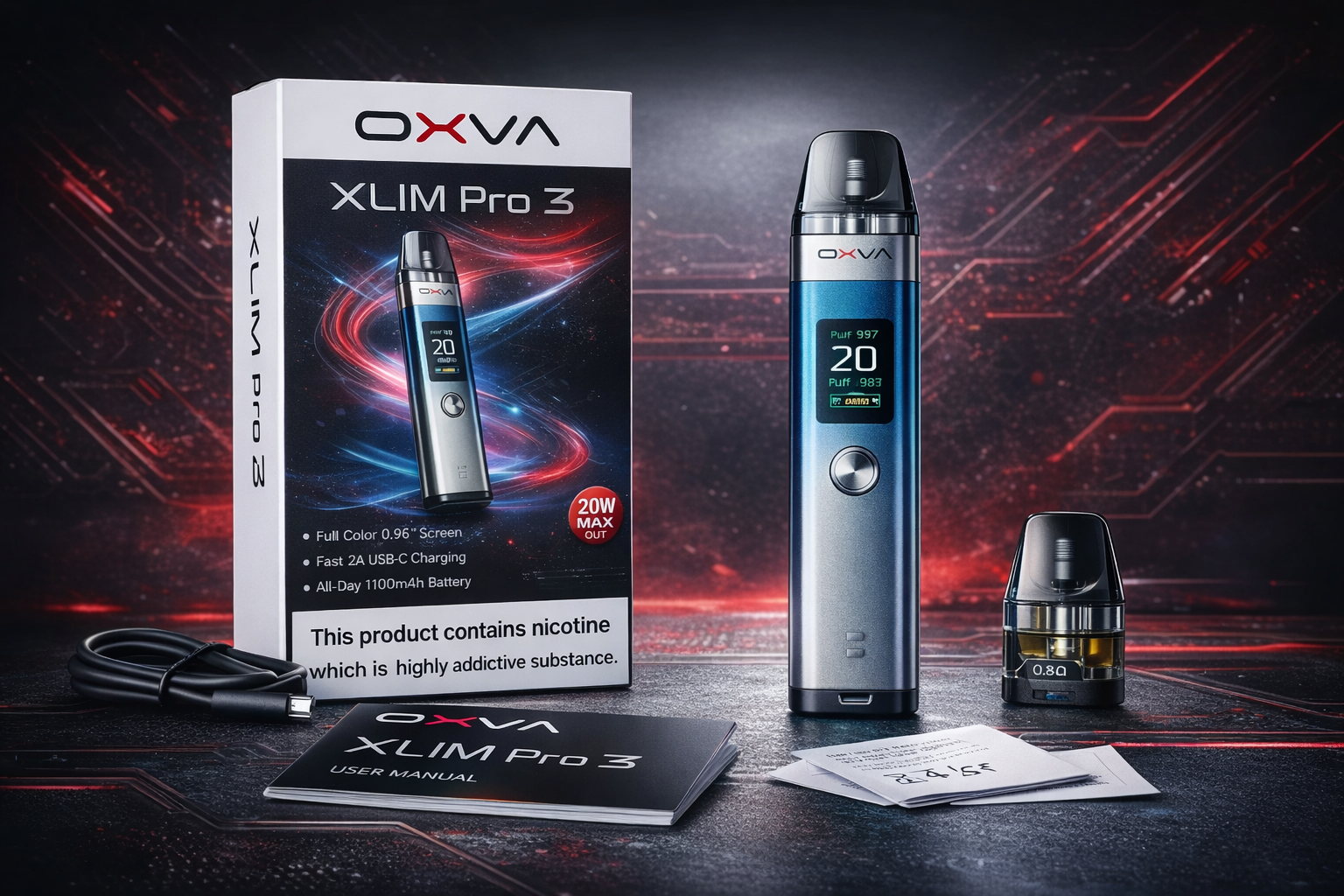
Main controls
- 5 clicks on or off
- 3 clicks wattage
- 4 clicks lock
- Wait 5–8 mins after fill
Setup made simpler
Real button controls
Screen prompts explained
Key specs at a glance
Quick answer: the main XLIM Pro 3 controls
These are the controls most people want first.
Turn on or off
Press the function button five times quickly to power the device on or off.
Adjust wattage
Press the function button three times quickly to enter wattage adjustment.
Lock or unlock
Press the function button four times quickly to lock or unlock the device.
Vape
You can inhale to activate it or press the function button, depending on how you prefer to use it.
Quick answer: 5 clicks powers it, 3 clicks adjusts watts, and 4 clicks locks or unlocks it.
OXVA XLIM Pro 3 specifications
These are the key details listed in the manual.
Size
119.9 × 25.7 × 15mm
Compact pod device with a slim, tall shape.
Battery
Built-in 1500mAh
Designed for full-day use with Type-C charging.
Power
Up to 30W
Manual-listed maximum output of 30 watts.
Screen
1.05 inch colour screen
Shows wattage, battery and device prompts.
Pod Capacity
3ml / 2ml
The manual lists both regional versions.
Charging
Type-C 5V / 2A
USB-C charging through the Type-C port.
Voltage
3.2V–4.35V
Output voltage range shown in the manual.
Resistance Range
0.3Ω–3.0Ω
Manual-listed supported resistance range.
What is on the XLIM Pro 3 device
These are the main parts shown in the manual.
Cartridge
The pod section at the top of the device.
Function button
The main button used for power, wattage changes and locking.
HD colour screen
The display shows wattage, battery information and prompts.
Airflow adjust valve
Lets you fine-tune the draw.
RGB light strip
The manual lists light and theme settings for the device.
Type-C charging port
The charging point for the built-in battery.
Device body
Main housing for the battery, controls and screen.
Pod connection area
The fit here matters for normal day-to-day use.
How to fill and prime the XLIM Pro 3 properly
A rushed first fill is one of the easiest ways to spoil the first experience with a new pod.
Best filling routine
- Fill the e-liquid into the cartridge carefully
- Close it as soon as possible after filling
- Let a new filled pod sit for at least 5 to 8 minutes
- Only then start vaping
- Take it gently on the first few puffs
Why this helps
- Rushing a fresh pod can lead to a poor first vape
- Leaving things open too long can increase leaking risk
- Not waiting long enough can mean the wick is not ready
- People often blame the device when the real issue is poor priming
The most useful filling tip is simple: after filling a new cartridge, wait at least 5 to 8 minutes before using it.
Extra XLIM Pro 3 functions
The manual also shows a few extra features that are easy to miss.
Puff reset
The manual includes a puff reset option in the secondary menu.
Theme and light switch
You can change theme and light settings from the menu.
Airflow adjustment
The airflow adjust valve lets you fine-tune how loose or restricted the draw feels.
What the XLIM Pro 3 screen messages mean
These are the main prompts listed in the manual.
Low Battery
The battery level is too low and the device needs charging.
No Atomizer
The device is not detecting the pod correctly, so check the pod fit and connection.
Short
The device is warning about a short condition and it should not be ignored.
Timeout
The device has reached its puff time limit.
Temp High
The device temperature is too high and it needs time to cool down.
Repeated messages
If the same prompt keeps returning, check the pod, battery and overall device condition before carrying on.
Important safety points
These are the simple safety habits worth keeping in mind from the manual.
Good habits
- Use the correct charging setup
- Keep the device away from inflammable and explosive materials
- Use OXVA brand components and accessories
- Keep the device in normal working condition
Do not ignore
- Do not leave the device unattended while charging
- Do not ignore repeated warning prompts
- Do not force a pod that is fitting badly
- Do not carry on as normal if something clearly feels wrong
OXVA XLIM Pro 3 manual FAQ
Quick answers to the most common XLIM Pro 3 setup, controls and usage questions.
How do I turn the OXVA XLIM Pro 3 on and off?
Press the function button five times quickly to turn the device on or off.
How do I change the wattage on the OXVA XLIM Pro 3?
Press the function button three times quickly, then adjust the wattage.
How do I lock or unlock the XLIM Pro 3?
Press the function button four times quickly to lock or unlock the device.
Can I inhale to vape on the XLIM Pro 3?
Yes. The manual says you can inhale to activate the device or use the function button to vape.
How long should I wait after filling a new XLIM Pro 3 pod?
Wait at least 5 to 8 minutes before vaping on a newly filled cartridge.
What is the battery size of the OXVA XLIM Pro 3?
The manual lists a built-in 1500mAh battery.
What is the maximum wattage of the XLIM Pro 3?
The manual lists a maximum output of 30W.
What charging type does the XLIM Pro 3 use?
The manual lists Type-C charging at 5V/2A.
What does “No Atomizer” mean on the XLIM Pro 3?
It means the device is not detecting the pod correctly, so check the pod fit and connection first.
What does “Low Battery” mean on the XLIM Pro 3?
It means the battery level is too low and the device needs charging.
What does “Short” mean on the XLIM Pro 3?
It is a short warning shown by the device and should not be ignored.
What does “Timeout” mean on the XLIM Pro 3?
It means the device has reached its puff time limit.
What does “Temp High” mean on the XLIM Pro 3?
It means the device temperature is too high and it needs time to cool down.
What size screen does the XLIM Pro 3 have?
The manual lists a 1.05 inch colour screen.
What pod capacity does the XLIM Pro 3 manual list?
The manual lists 3ml and 2ml versions depending on region.
What resistance range does the XLIM Pro 3 support?
The manual lists a resistance range of 0.3Ω to 3.0Ω.
Does the XLIM Pro 3 have adjustable airflow?
Yes. The manual lists an airflow adjust valve on the device.
Can I reset the puff counter on the XLIM Pro 3?
Yes. The manual includes a puff reset option in the secondary menu.
Can I change the theme or light settings on the XLIM Pro 3?
Yes. The manual shows theme and light switch options in the menu.
What should I do if my XLIM Pro 3 pod is fitting badly?
Check that the cartridge is seated correctly and do not force it. If it still feels wrong, inspect the pod and connection before carrying on.
What should I do if the warning message keeps coming back?
Check the pod fit, battery level and general device condition before using it again as normal.
Should I leave the XLIM Pro 3 charging unattended?
No. The manual says not to leave the device unattended while charging.
Should I use non-OXVA parts with the XLIM Pro 3?
The manual says to use OXVA brand components and accessories.
Do I still need the full PDF manual?
For everyday questions like setup, controls, filling and screen prompts, the steps above usually give you the fastest answer.
Once the basics are sorted, choose the guide that matches your next question
Most people next need help with pod choice, wattage settings or troubleshooting, so those guides are the best follow-up once the main controls are clear.
Open XLIM Pod Guide
Open Wattage Guide
Open Troubleshooting
The answers above are based on the XLIM Pro 3 manual and rewritten to make the device easier to use day to day.