
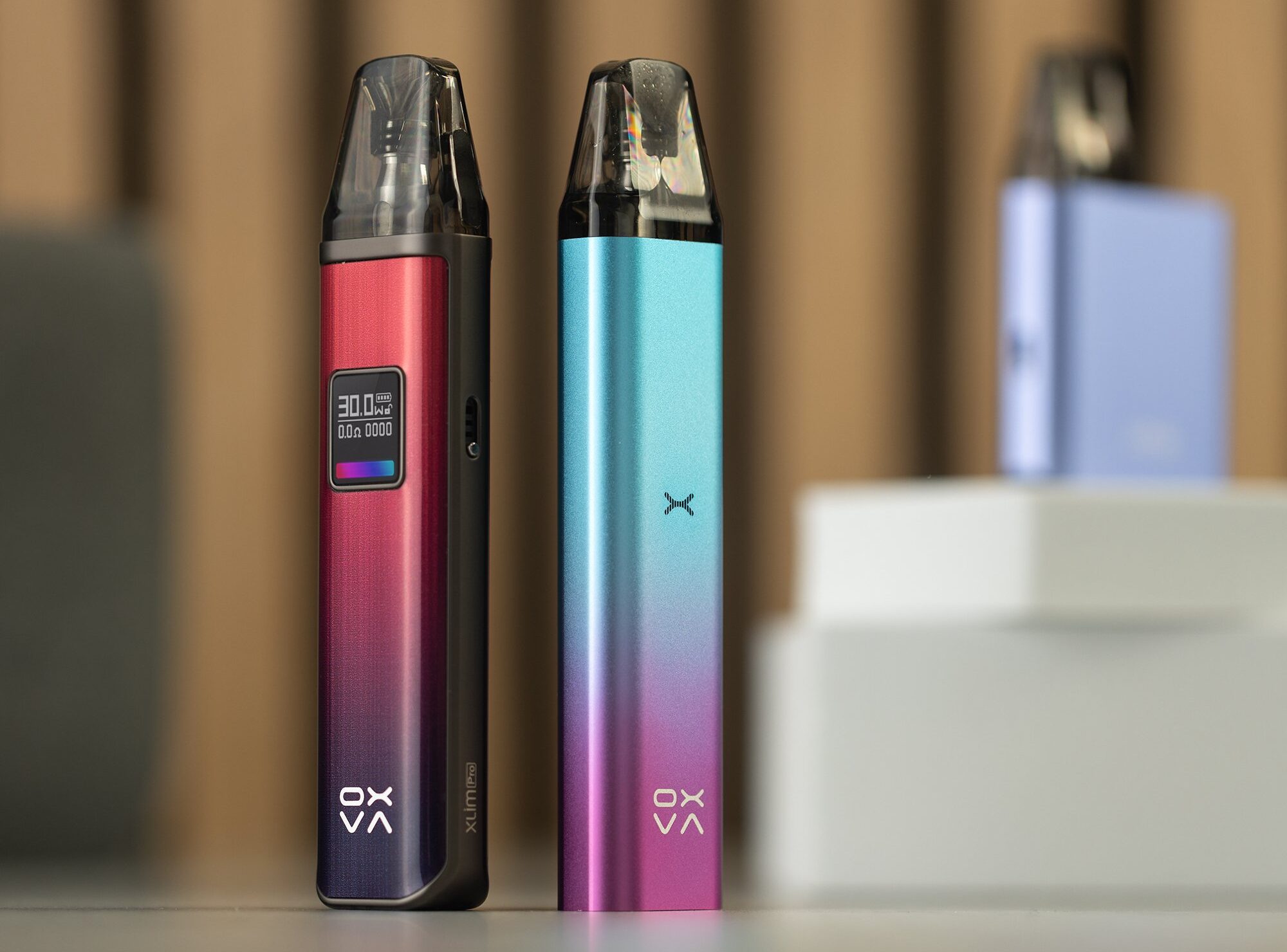
How to Unlock OXVA Vape Safely in Seconds (Updated Guide for XLIM Pro 2, Pro 2 DNA & SE 2)
If your OXVA vape looks locked, will not fire, or seems unresponsive, this guide shows the fastest safe way to unlock it, check whether it is really locked, and troubleshoot the problem before assuming the device is faulty.
Quick answer: on the models this page currently focuses on, the unlock method depends on the device. The XLIM Pro 2 and XLIM Pro 2 DNA use quick button clicks to lock or unlock, while the SE 2 uses a different combo-based approach.
If clicks do nothing, do not assume the device is broken straight away. Low battery, a badly seated pod, dirty contacts, or a powered-off device can all feel like a lock problem.
What the OXVA Lock Actually Does
Lock mode exists to stop accidental firing when the device is in a pocket or bag. That helps avoid wasted liquid, burnt coils, and unwanted activation while travelling or carrying the vape around during the day.
On the device family this page currently covers, the lock does not mean the device is dead. It simply changes what the fire button or control buttons will do until the correct unlock method is used.
Important distinction: a locked device, a powered-off device, and a low-battery device can all feel very similar if you are just pressing the button and getting no useful response.
Quick Answer by Model
| Model | Main unlock logic | Power on / off | Extra note |
|---|---|---|---|
| XLIM Pro 2 | Quick click unlock / lock action | Five quick clicks | Also supports puff reset and wattage changes via click sequences |
| XLIM Pro 2 DNA | Same lock / unlock style as Pro 2 | Five quick clicks | Includes DNA-specific features such as Replay |
| XLIM SE 2 | Uses a combo-style lock method | Model-specific interaction | Feels different from the Pro models by design |
If your device is actually a different XLIM or newer OXVA model, treat this page as a starting point and then follow the device-specific guide for that model.
How to Unlock the OXVA XLIM Pro 2
Wake the screen
Start with a short press so you can see whether the device is alive and responding.
Use the lock / unlock click sequence
Apply the Pro 2 quick-click method cleanly and quickly rather than slowly spaced presses.
Check the screen response
The display should confirm that the device has changed state.
Test the device safely
After unlocking, test firing or auto-draw only once the pod is seated properly and contains enough liquid.
The Pro 2 is one of the easier models once you know the pattern. The biggest problem is usually not the device — it is that the click sequence was too slow, the battery is too low, or the pod connection is poor.
How to Unlock the OXVA XLIM Pro 2 DNA
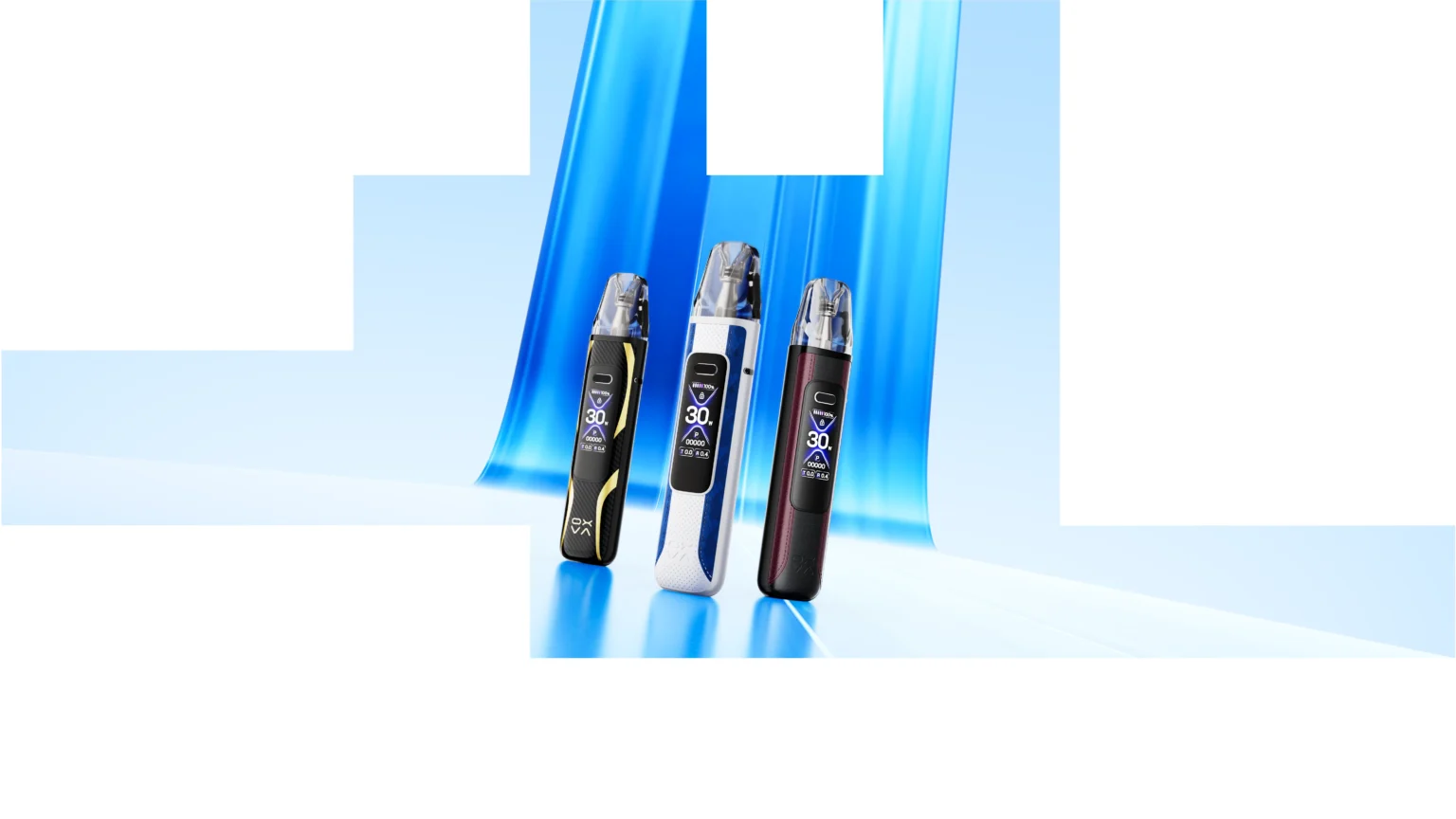
The XLIM Pro 2 DNA follows the same broad lock and unlock logic as the Pro 2, but the device is aimed at users who may also be using Replay and other DNA-led features.
Best way to approach the DNA version
- Wake the device first
- Use the quick lock or unlock click pattern cleanly
- Confirm on screen before assuming the button did nothing
- If needed, power cycle the device and try again
Good habit: if the DNA version feels confusing, separate the problem into three parts — is it locked, is it powered on, and is the pod actually making clean contact?
That simple check avoids a lot of false “device fault” assumptions.
How to Unlock the OXVA XLIM SE 2
The SE 2 differs from the Pro-family feel. If you upgraded from an XLIM Pro model, the unlock process can seem wrong at first simply because the interaction pattern is different.
Best SE 2 unlock checklist
- Wake the device or indicator first.
- Use the correct combo-based lock method for the SE 2.
- If nothing changes, charge the device and try again.
- Reseat the pod and confirm it is not a contact issue.
Do not force the diagnosis: if the SE 2 still appears dead after the combo, it may be a battery, pod or contact problem rather than a true lock issue.
It Still Will Not Unlock? Try These Fixes Next
If the expected button sequence does nothing, work through these before assuming the device has failed.
Charge it first
A low battery can stop the screen and controls from behaving properly. Give it some charging time before testing again.
Reseat the pod
Remove the pod and click it back in firmly. A poor contact can make the device feel unresponsive.
Clean the contacts
Use a dry cotton swab or tissue to wipe the pod base and device contacts gently.
Power cycle the device
Turn it off fully, wait a moment, then turn it back on and try the unlock method again.
Try a fresh pod
A flooded or faulty pod can create misleading behaviour and make the device seem broken.
Check for damage
If the device has been dropped or exposed to liquid, the issue may be hardware rather than settings.
For wider XLIM issues beyond locking, route readers into your troubleshooting page and power guide.
Extra Controls You Might Need After Unlocking
Unlocking the device is often only the first step. Users then normally want to know how to adjust wattage, clear puffs, or get the device back into a normal everyday state.
- Power on / off: if the device looks dead, make sure it is not simply powered off.
- Wattage adjustment: if flavour is too weak or too harsh, the wattage may need changing.
- Puff counter reset: useful when tracking pod life.
- Pod replacement: if the device unlocks but still feels wrong, the pod may simply be worn out.
Best support flow: unlock the device, confirm it powers on, confirm the pod is seated, then troubleshoot flavour or firing issues separately.
Frequently Asked Questions
How do I unlock my OXVA XLIM Pro 2?
Use the Pro 2 lock or unlock quick-click method and confirm the state on screen. If it still does nothing, charge the device and reseat the pod before trying again.
How do I unlock the XLIM Pro 2 DNA version?
The Pro 2 DNA follows the same general lock and unlock logic as the standard Pro 2. If it feels unresponsive, separate the problem into lock status, battery status and pod contact.
Why is my OXVA locked and not firing even after clicks?
The battery may be low, the pod may not be seated properly, or the device may actually be powered off rather than locked.
What if my OXVA vape still will not unlock?
Charge it, clean the contacts, reseat the pod, power cycle it, and if necessary try a fresh pod before assuming the hardware has failed.
Does lock mode mean the device is broken?
No. Lock mode is a safety feature. The bigger issue is usually that users mistake lock mode for a dead battery, poor contact or power-off state.
Can I still auto-draw when the device is locked?
That depends on the model and how the lock behaviour is implemented, so treat the lock as a control safety feature and check the device response rather than assuming every model behaves the same.
What page should I read next if unlocking did not solve it?
The best next reads are your XLIM troubleshooting guide, your turn-on guide, and your pod support pages.